创建Devuan的qcow2镜像并从Terraform启动虚拟环境(附赠内容)
大家好,我是无能。因为关于Terraform的文章不多,所以写一篇。
背景
虽然经常听到Terraform这个名字,但对其没有太多概念,所以想尝试一下。
另外,听说qemu的虚拟磁盘镜像qcow2镜像也可以使用,所以我想这在我的环境中也能行吧?
如果能做到这一点,就可以轻松地作为当前生产服务器的测试环境。不知不觉中,我随意搭建的家用服务器已经运行得相当不错了,所以我想尽可能提高其运行率,能够轻松部署虚拟环境让我感到很安心。
总而言之,虚拟环境就是虚拟环境,我一直觉得很麻烦,所以推迟了,但多亏了Terraform,我感觉这种印象可能会消失,所以决定动手做。
之所以觉得麻烦,是因为我必须记住virsh和qemu的所有选项,甚至启动qemu的选项也很麻烦。我想用Terraform来解决这个问题。
创建qcow2镜像
首先,创建Devuan的qcow2镜像。
wget https://files.devuan.org/devuan_daedalus/installer-iso/devuan_daedalus_5.0.1_i386_netinstall.iso
qemu-img create -f qcow2 devuan.qcow2 10G
 sudo chown libvirt-qemu:libvirt-qemu devuan.qcow2 devuan_daedalus_5.0.1_i386_netinstall.iso
sudo chmod 644 devuan.qcow2 devuan_daedalus_5.0.1_i386_netinstall.iso
sudo virt-install --name devuan --ram 1024 --disk path=./devuan.qcow2,size=10 --vcpus 1 --os-type linux --os-variant debian10 --network bridge=virbr0 --graphics vnc --console pty,target_type=serial --cdrom devuan_daedalus_5.0.1_i386_netinstall.iso
这样就会显示正在安装,连接后完成安装。
sudo virt-viewer --connect qemu:///system devuan

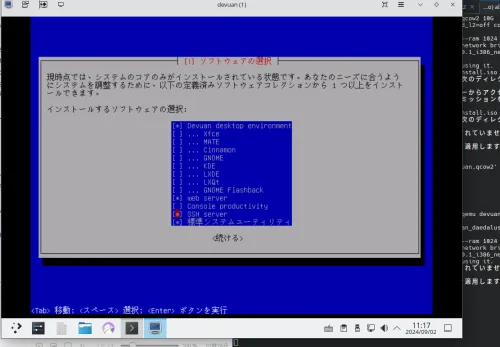
有点复杂,这个画面是操作中的ThinkPad X1 - VNC → 自制PC的ArtixLinux - virt-viewer → 虚拟环境中的Devuan的画面。
如果安装后想编辑镜像,请使用
sudo qemu-system-x86_64 -m 2G -smp 2 -drive file=devuan.qcow2,format=qcow2 -net nic -net user -vnc `0 -enable-kvm
通过VNC的5900端口连接。
vncviewer 192.168.10.100:5900
这样qcow2镜像就准备好了。
Terraform的配置与启动
在vim main.tf中,我写入了以下内容。
  terraform {
  required_providers {
    libvirt = {
      source  = "dmacvicar/libvirt"
      version = "~> 0.7.1"
    }
  }
}

provider "libvirt" {
  uri = "qemu:///system"
}

resource "libvirt_volume" "devuan_qcow2" {
  name   = "devuan.qcow2"
  source = "./devuan.qcow2"
  format = "qcow2"
}

resource "libvirt_domain" "devuan_vm" {
  name   = "devuan-vm-new"
  memory = "1024"
  vcpu   = 2

  network_interface {
    network_name = "default"
  }

  disk {
    volume_id = libvirt_volume.devuan_qcow2.id
  }

  console {
    type        = "pty"
    target_port = "0"
    target_type = "serial"
  }

  graphics {
    type        = "vnc"
    listen_type = "address"
  }
}
接下来就是启动它。
terraform init
terraform plan
terraform apply
启动后,登录到虚拟环境。
确认IP。
$ sudo virsh domifaddr devuan-vm-new
 名称     MAC 地址     协议     地址
-------------------------------------------------------------------------------
 vnet13     52`54`00`0a`e9`bc    ipv4         192.168.122.216/24
已确认。现在登录吧。
$ ssh -l taro 192.168.122.216
The authenticity of host '192.168.122.216 (192.168.122.216)' can't be established.
ED25519 key fingerprint is SHA256`VAjob/o7gQXvmeNUodajSfdBky0eXd0RTwomP1wHtWk.
This host key is known by the following other names/addresses`
    ~/.ssh/known_hosts`5` 192.168.122.83
    ~/.ssh/known_hosts`6` 192.168.122.163
    ~/.ssh/known_hosts`7` 192.168.122.162
Are you sure you want to continue connecting (yes/no/[fingerprint])? yes
Warning` Permanently added '192.168.122.216' (ED25519) to the list of known hosts.
taro@192.168.122.216's password`
Linux devuan 6.1.0-25-686 #1 SMP PREEMPT_DYNAMIC Debian 6.1.106-3 (2024-08-26) i686

The programs included with the Devuan GNU/Linux system are free software;
the exact distribution terms for each program are described in the
individual files in /usr/share/doc/*/copyright.

Devuan GNU/Linux comes with ABSOLUTELY NO WARRANTY, to the extent
permitted by applicable law.
taro@devuan`~$
OK!我打算日后尝试启动多个实例。
然后销毁实例。
terraform destroy
附赠:qcow2镜像的再分发
由于Devuan官方没有最新版的qcow2镜像,所以我这次自己创建了,并在以下地址进行托管和再分发。
这是大家最喜欢的附赠内容。
https//files.soulminingrig.com
请使用以下信息登录:
user : taro
password : toor
另外,密码与Devuan官方的默认root密码相同。
那么下次再见。请多关照。
顺便说一下,这篇文章我搞错了,删掉后这是第二次写了。吐舌。