Part 2 - Building a Git Server on GCP Free Tier - Gitea Installation
Hello everyone.
This time, it's about installing Gitea on GCE and configuring WireGuard VPN.
Install Necessary Components
It's not ideal, but I'll proceed as the root user.
For details, refer to the official documentation.
apt install -y git mariadb-server mariadb-client
adduser \
   --system \
   --shell /bin/bash \
   --gecos 'Git Version Control' \
   --group \
   --disabled-password \
   --home /home/git \
   git
mkdir -p /var/lib/gitea/{custom,data,log}
chown -R git:git /var/lib/gitea/
chmod -R 750 /var/lib/gitea/
mkdir /etc/gitea
chown root:git /etc/gitea
chmod 770 /etc/gitea
ufw allow 3000/tcp
ufw reload
Download the latest binary using wget.
wget -O gitea https://dl.gitea.com/gitea/1.22.4/gitea-1.22.4-linux-amd64
chmod +x gitea
mv gitea /usr/local/bin/gitea
Database Setup
mysql -u root -p
CREATE DATABASE gitea;
CREATE USER 'gitea'@'localhost' IDENTIFIED BY 'yourpassword';
GRANT ALL PRIVILEGES ON gitea.* TO 'gitea'@'localhost';
FLUSH PRIVILEGES;
EXIT;
Daemon File Configuration
Official conf file as an example for Systemd
I usually set it up with Supervisor, but this time I'll try Systemd.
I configured it as follows.
$ sudo cat /etc/systemd/system/gitea.service
[Unit]
Description=Gitea (Git with a cup of tea)
After=network.target

[Service]
User=git
Group=git
WorkingDirectory=/var/lib/gitea
ExecStart=/usr/local/bin/gitea
Restart=always
Environment=USER=gitea HOME=/home/git GITEA_WORK_DIR=/var/lib/gitea

[Install]
WantedBy=multi-user.target
systemctl enable gitea
systemctl start gitea
systemctl status gitea
● gitea.service - Gitea (Git with a cup of tea)
     Loaded: loaded (/etc/systemd/system/gitea.service; enabled; preset: enabled)
     Active: active (running) since Sun 2024-11-24 15:16:30 UTC; 3 days ago
   Main PID: 3276 (gitea)
      Tasks: 9 (limit: 1136)
     Memory: 114.6M
        CPU: 2min 4.743s
     CGroup: /system.slice/gitea.service
             └─3276 /usr/local/bin/gitea
~~~
If it shows Active like this, it's OK.
Set up WireGuard VPN
I often set up the client side of WireGuard, but it got tedious, so I decided to generate as much as possible.
wg-genconf/wg-client.sh at main · haturatu/wg-genconf · GitHub
It's a somewhat clunky interactive script, but it's mostly for my own use.
Finally, it's an easy setup where you just paste the output "Please set the following on the server side." directly into the server's conf file.
If it seems connected with the following, I'll try curling Gitea's standard port 3000.
wg-quick up wg0
wg
Server side
wg-quick down wg0
wg-quick up wg0
wg
ping -c 5 10.1.0.6
curl 10.1.0.6:3000
If the Gitea page is displayed as curl's standard output, then it's OK.
DNS Configuration
Set the destination of git.mydomain.jp in the DNS record to the IP address as the A record for the VPN server side, and after confirming with nslookup that it has been reflected, proceed to the next step.
Reverse Proxy with Nginx
Since the DNS has been successfully updated, I will also obtain a certificate with certbot.
server {
    if ($host = git.mydomain.jp) {
        return 301 https://$host$request_uri;
    } # managed by Certbot

    listen 80;
    server_name git.mydomain.jp;

    location / {
        proxy_pass http://10.1.0.6:3000/;
        proxy_set_header Host $host;
        proxy_set_header X-Real-IP $remote_addr;
        proxy_set_header X-Forwarded-For $proxy_add_x_forwarded_for;
        proxy_set_header X-Forwarded-Proto $scheme;

    }
}

server {
    listen 443 ssl;
    server_name git.mydomain.jp;

    location / {
        proxy_pass http://10.1.0.6:3000/;
        proxy_set_header Host $host;
        proxy_set_header X-Real-IP $remote_addr;
        proxy_set_header X-Forwarded-For $proxy_add_x_forwarded_for;
        proxy_set_header X-Forwarded-Proto $scheme;

    }
    ssl_certificate /usr/local/etc/letsencrypt/live/git.mydomain.jp/fullchain.pem; # managed by Certbot
    ssl_certificate_key /usr/local/etc/letsencrypt/live/git.mydomain.jp/privkey.pem; # managed by Certbot
}
By the way, to obtain an SSL certificate,
certbot --nginx -d git.mydomain.jp
you obtain it with this command.
Check syntax and restart.
nginx -t
service nginx reload
Check in Browser
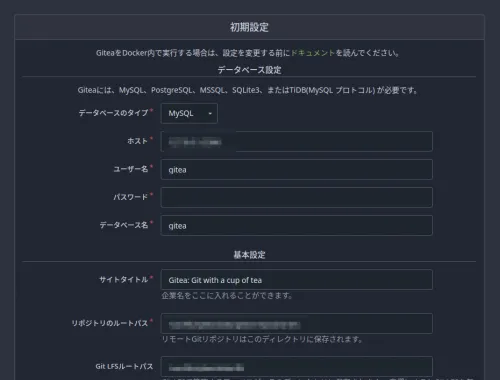
It worked successfully.
Now, let's continue to Q.